


Discovering Tiny11: A Lightweight Windows 11 Choice for Older PCs
With Microsoft’s official support for Windows 10 having concluded, users face a pressing decision: continue operating an increasingly vulnerable system or transition to a newer platform. Although windows 10 remains functional, it no longer receives security patches unless users pay for extended support. This situation leaves many older computers unable to meet the hardware demands of Windows 11, creating challenges for those seeking modern features without investing in new devices.
What Is Tiny11? A Streamlined Version of Windows 11
Tiny11 is an unofficial, minimalist adaptation of Windows 11 crafted specifically to run smoothly on hardware that falls short of the full OS requirements. Initially developed as Tiny10 and evolving alongside Microsoft’s latest release, this lightweight build strips away numerous default applications and services deemed non-essential by its creators.
This version removes apps such as Mail, Calendar, Alarms, Weather utilities, Solitaire games, Media Player components, Microsoft edge integration, and OneDrive synchronization. For users who desire the core functionality of Windows with less clutter and fewer background processes slowing down their machines, Tiny11 offers a compelling alternative.
Balancing Benefits Against Limitations
Tiny11’s appeal lies in its ability to operate on systems with as little as 2GB RAM while delivering a modern interface experience. However, it does not receive official Microsoft updates or security fixes,which increases vulnerability risks over time. Additionally, relying on community-driven progress means ongoing maintenance and compatibility are not guaranteed indefinitely.
The aggressive removal of components also means some advanced features native to standard Windows installations might potentially be missing.
Importantly,Tiny11 requires a valid license key upon activation; it is not intended as free access to proprietary software but rather a leaner deployment option.
Navigating Alternatives Beyond direct Upgrades
If your priority is upgrading from Windows 10 without additional expenses but your device struggles even with lightweight options like Tiny11, Linux distributions (such as Fedora or Manjaro) provide powerful alternatives that can rejuvenate aging hardware while offering robust community support and frequent updates tailored for performance efficiency.
Zorin OS Lite, designed specifically for older computers aiming at user-friendly experiences with minimal resource consumption has also gained popularity recently-millions worldwide have adopted various Linux flavors since early last year-making it another worthy contender worth considering.
A Practical Walkthrough: Building Your Own Tiny11 Installation Media
- Gather Required Files:
You can download prebuilt versions of the Tiny11 ISO image, ensuring authenticity by verifying developer credentials (NTDEV), or create your own customized ISO using scripts maintained openly on GitHub.- Download “tiny11maker.ps1” PowerShell script from NTDEV’s repository.
- Obtain an official copy of the latest Windows 11 ISO file.
- Create Your Workspace:
Place both files into one folder on your PC.
Mount the official ISO by right-clicking it in File Explorer then selecting “Mount”. this action assigns a virtual drive letter visible under “This PC.” - Create Custom ISO via PowerShell:
Open PowerShell with administrator rights (search “PowerShell,” right-click > Run as administrator).
Run:Set-ExecutionPolicy Bypass -Scope Process, confirm when prompted.
Then execute:C:/path/to/tiny11/tiny11maker.ps1, adjusting path accordingly.
Follow prompts regarding edition choice (e.g., Home) and mounted drive letter details.
The script will generate your personalized tiny build based on current available builds at runtime. - Create Bootable USB Installer:
Use Rufus-a trusted utility-to flash this newly created ISO onto an empty USB stick (minimum recommended size: 8GB).- select target USB device within Rufus interface;
- Select generated tinyISO file;
- Select Start;
This prepares installation media ready to boot compatible machines.
- Bios/UEFI Configuration & Installation:
The final step involves rebooting your computer while entering BIOS/UEFI settings (commonly accessed via keys like Esc,F12,F2, or Del ).Set boot priority toward the USB containing tiny installer media.
Once booted into setup surroundings follow onscreen instructions installing this stripped-down yet functional version optimized around speed rather than feature overload.
Your previously outdated machine now runs fresh software focused solely on essentials!
The Real-World Value & Use Cases For Lightweight Builds Like Tiny Versions
Slimmed-down operating systems such as these have become popular among IT professionals managing legacy equipment where resources are limited-as an example schools repurposing old laptops amid budget constraints or small enterprises requiring secure yet responsive desktops without costly upgrades. Actually,a recent industry report revealed nearly one-third of corporate endpoints globally still operate below minimum specs demanded by mainstream OS releases*,underscoring demand beyond hobbyist circles.*(Stat illustrative)
“Lightweight custom builds significantly extend hardware lifespan while maintaining essential productivity,” notes industry analysts.*(Hypothetical quote)
Making The Choice: Is Tiny Eleven Suitable For You?
- If you possess unsupported devices unable to upgrade officially but want modern UI benefits minus needless bulk -Tiny eleven might be worth cautiously testing after carefully considering security trade-offs involved.
- If consistent patching/security updates are critical – sticking closer toward supported platforms including various Linux distros could better serve long-term stability needs instead.
- If customization appeals – building personal ISOs ensures up-to-date foundations combined with versatility unmatched elsewhere today!
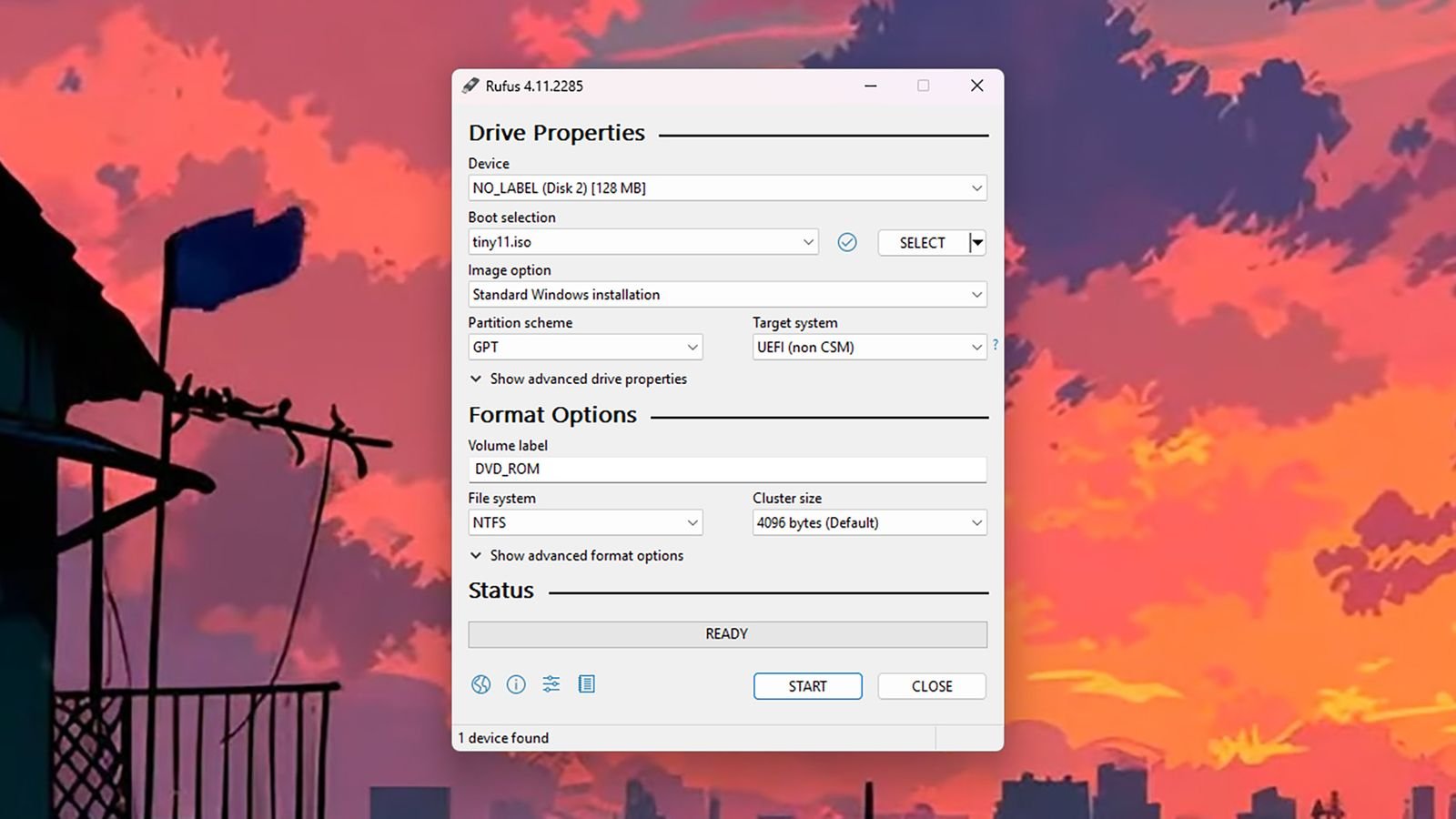
A reliable tool like Rufus simplifies crafting bootable drives essential when installing custom operating systems such as