


ultimate Strategies for Backing Up Your Android Device
Your Android phone is a treasure trove of personal data-from memorable photos and crucial contacts to app settings and game progress. Losing this information can be heartbreaking, but investing a few moments in creating backups ensures your digital life remains intact.
Google Cloud Backup: Effortless Data Protection
Utilizing Google’s built-in cloud backup system is one of the simplest ways to protect your Android data. In 2024, Google Drive continues to provide 15 GB of complimentary storage shared across Gmail, Drive, and Photos-adequate for many users’ everyday needs.
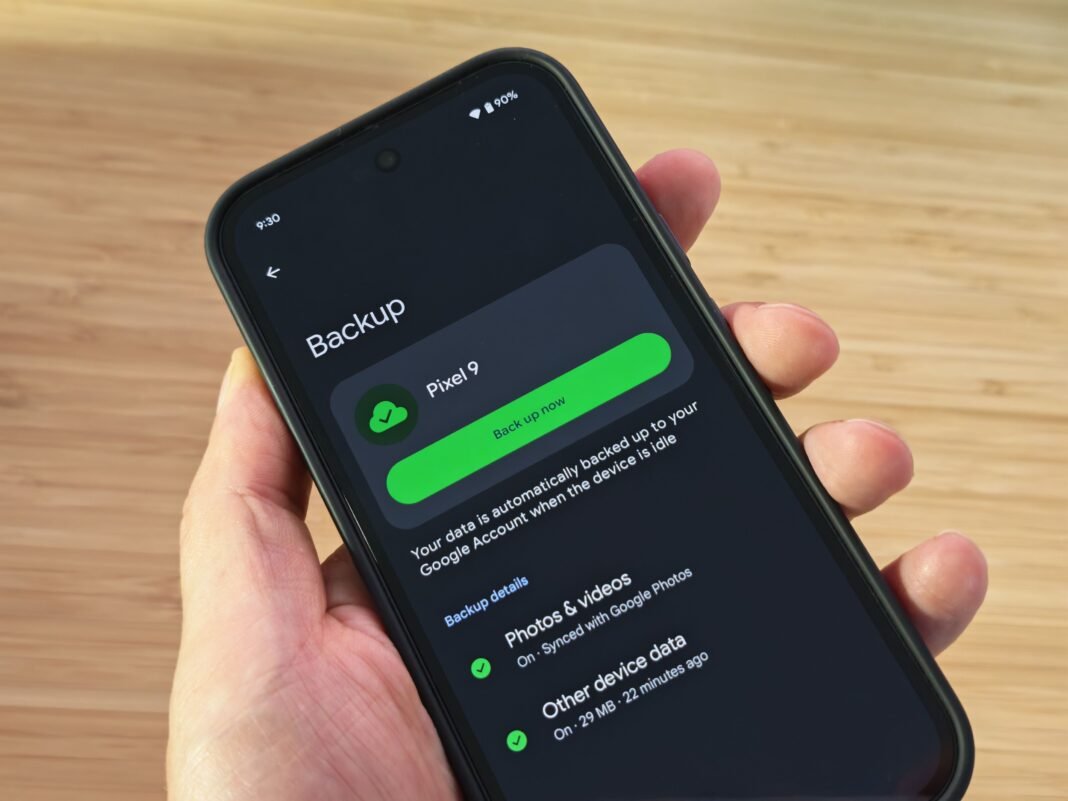
- Open Settings, then tap System, followed by Backup. Alternatively, look under Settings, then Back up or copy data.
- Activate backup by switching it on. Select the types of content you want saved-such as Photos & videos, app information, contacts, and device preferences-and confirm your choices.
- Select the option to Back up now. Initial backups may require several hours depending on file size; it’s best to keep your phone connected to Wi-fi and charging overnight for optimal results.
Navigating Storage Constraints with Google One Plans
If you exceed Google’s free storage limit-which happens frequently as smartphone cameras capture higher-resolution images-you might explore upgrading via Google One. Plans begin at $1.99 monthly for 100 GB or $19.99 annually; larger tiers include 2 TB at $9.99 per month or $99 yearly.
This subscription supports sharing storage with up to six family members while offering enhanced management tools through the google One app’s Storage section.
Straightforward File Backup Using Your Computer
Easily Transfer Files from Android Devices on Windows PCs
A wired USB connection offers a dependable way to back up files without relying on internet services:
- Plug your Android phone into a Windows PC using a USB cable.
- Swipe down from the top notification bar on your phone; tap the “charging this device via USB” alert (or similar).
- Select File transfer (MTP).
- Your PC should automatically open File Explorer displaying your device folders-or open it manually and find your phone listed under “This PC.”
- browse folders like “DCIM/Camera”, where photos are usually stored, then drag-and-drop files onto your computer for safekeeping.
smooth File Backup workflow for macOS Users
- Install the official Android File Transfer application before connecting an Android device via USB cable to Mac computers.
- Once connected, an interface will appear showing accessible folders where you can copy desired files such as pictures found in “DCIM/Camera.”
Easily Back Up Data Using Chromebook’s Native Features
- Connect an Android smartphone directly into any Chromebook USB port.
- Pull down notifications from top-right corner; tap “Charging this device via USB” if prompted;
- You might try Dropbox which starts with 2 GB free space but offers scalable paid plans;
< li >Microsoft OneDrive integrates seamlessly especially when using Office applications;
< li >MEGA provides end-to-end encryption along with generous initial free capacity;
< li >Box focuses more on business users featuring collaboration tools.
Choose“File transfer”. This opens Chromebook’s Files app allowing you to drag essential documents or media locally onto its storage space quickly and efficiently.
diverse Cloud Alternatives Beyond Google Drive Options
If Google’s free quota feels limiting or if you’d prefer other ecosystems:
An excellent utility named Autosync enables automatic synchronization between these cloud platforms and local devices-helping maintain current backups effortlessly across multiple services simultaneously.< / p >
< p >< strong >Important security tip:< / strong > Always adopt stringent safety measures when storing sensitive information online-including activating two-factor authentication (2FA) wherever available.< / p >Exclusive Backup Features Tailored for Samsung Smartphones
If you’re operating a Samsung handset-a brand holding nearly one-third of global smartphone market share in early 2024-you benefit from specialized backup options beyond standard Google offerings:
< ol >
< li >Go into“Settings”, then select“Accounts & backup.”
< li >Within samsung Cloud options pick“back up data.”
< li >Log in or create a Samsung account if requested; choose all categories such as apps,data,messages,and media files before tapping“Back up.”A standout feature called Temporary Cloud Backup allows Galaxy S-series owners temporary storage (up to 30 days) without permanent quota limits except individual file size capped at 100GB-ideal when switching phones rapidly while preserving vital content during transition periods through Maintenance Mode settings described above . This service supports third-party apps alongside core system elements .
Additionally ,Samsung Smart Switch software simplifies seamless transfers between devices including non-Samsung phones , though restoration functions exclusively onto Samsung hardware . it operates both Windows & macOS environments easing migration tasks substantially .
Smart Switch has gained popularity among users upgrading thier devices due largely its intuitive interface combined with broad compatibility support .
- You might try Dropbox which starts with 2 GB free space but offers scalable paid plans;